Microsoft Access Database
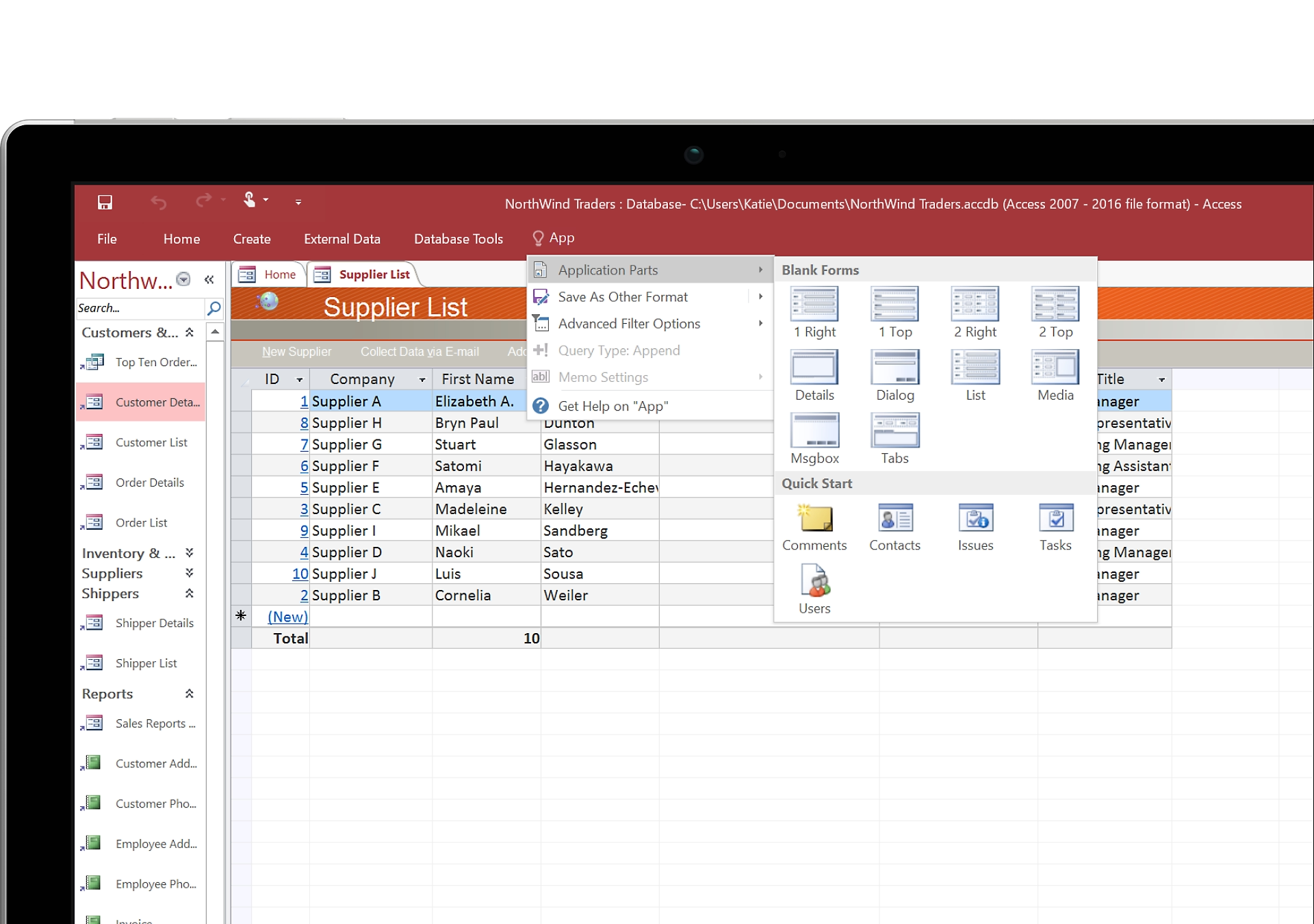
(Microsoft) Access Database
Quick taster and introduction: What is Access?
Introduction to Microsoft Access
Microsoft Access is a Relational Database Management System (RDBMS) that combines the relational Microsoft Jet Database Engine with a graphical user interface and software-development tools. It is part of the Microsoft 365 (formerly Office) suite and is widely used for building small to medium-sized database applications.
Key characteristics include:
- Graphical User Interface (GUI): Enables users to create tables, forms, reports, and queries without needing extensive SQL knowledge.
- File Format: Primarily uses
.accdb(Access 2007 and later) or the legacy.mdbformat. - Use Cases: Ideal for small business inventory management, departmental records, and personal data tracking.
Quick Summary:
- Tables: Store Data
- Queries: Retrieve, Process Data
- Forms: Graphical interface for entering, modifying table data. (Can be bound to table or query)
- Reports: Generate Structured Output (typically based on a query)
- Macros: Automate actions, e.g. open forms, run queries, apply filters etc.
Core Components
Access consists of four main objects that allow you to build functionality:
1. Tables
Tables are the fundamental storage containers where data resides.
- Data is stored in Records (rows) and Fields (columns).
- Fields have defined data types (e.g.,
Short Text,Number,Date/Time,Currency). - A Primary Key is crucial for uniquely identifying each record.
2. Queries
Queries allow you to retrieve, filter, sort, and process data from your tables.
- They use Jet SQL (or ACE SQL) under the hood.
- You can use the Query Designer (GUI) or write SQL manually.
- Example SQL:
SELECT FirstName, LastName FROM Employees WHERE Department = 'IT';
3. Forms
Forms provide a user-friendly interface for interacting with data.
- They can be bound to tables or queries.
- Forms prevent users from accidentally breaking the data structure by hiding the raw tables.
- Buttons and scripts can be added to forms to automate workflows.
4. Reports
Reports are used to format and present data for printing or review.
- They convert raw data into meaningful information (e.g., Invoices, Summary Charts).
5. Macros & VBA
- Macros: Strict sequences of actions to automate simple tasks (e.g., “Open Form X when button is clicked”).
- VBA (Visual Basic for Applications): A full-fledged programming language allowing for complex logic, error handling, and integration with other Office apps like Excel and Outlook.
SQL Support in Access
While Access is known for its GUI, it supports standard SQL operations:
SELECT(Retrieve Data)INSERT INTO(Add new records)UPDATE(Modify existing records)DELETE(Remove records)
Connecting to External Data
Access is often used as a “Front-End” application while linking to a more powerful “Back-End” database like SQL Server.
Method 1: Linked Tables
- Connects Access to external tables (SQL Server, Oracle, SharePoint).
- Access handles the interface, but the data stays in the server.
Method 2: Pass-Through Queries
- Executes SQL commands directly on the server.
- This is more efficient for heavy queries as it bypasses the local Access query engine.
- Example:
SELECT * FROM dbo.LegacyData WHERE Year < 2020;
Access vs. SQL Server
| Feature | Microsoft Access | SQL Server |
|---|---|---|
| Best For | Desktop apps, Small teams, Rapid Development | Enterprise apps, Web backends, Large Data |
| Data Limit | ~2 GB per file | Multiple Terabytes (TB) |
| Concurrency | Limited (Simultaneous users can cause locking) | High (Thousands of concurrent users) |
| Security | Basic file credentials | Advanced (Row-level security, Encryption, AD Integration) |
| SQL Engine | Jet / ACE | T-SQL (Transact-SQL) |
Learning Resources
Getting Started
Advanced Development (VBA)
Happy Learning!